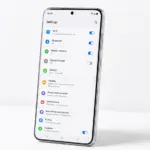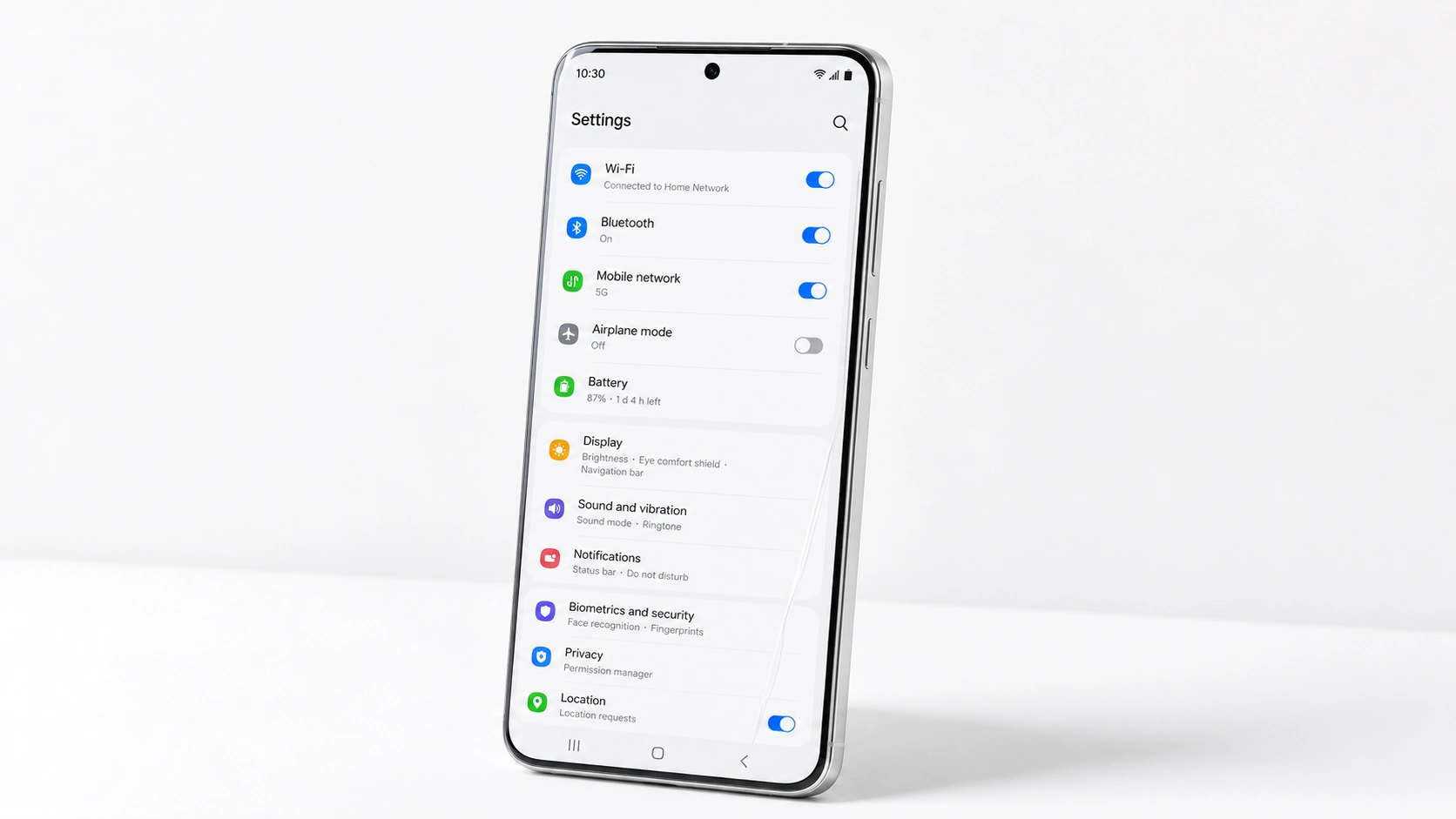
Every new Android phone ships with default settings that prioritise manufacturer preferences and data collection over your battery life, privacy and daily performance. Most people keep these defaults forever without knowing better options exist. These are the 10 settings worth changing in the first hour with any new Android phone — tested across Redmi, Samsung, Poco and Realme devices — and the reason each one matters.
1. Turn On Adaptive Battery
Adaptive Battery uses machine learning to learn which apps you use regularly and restricts background activity for apps you rarely open. This prevents apps you installed once and barely use from silently draining battery in the background. Go to Settings then Battery then Adaptive Battery and turn it on. On Samsung it is under Settings then Device Care then Battery then Adaptive power saving.
The impact builds over two weeks as the system learns your usage patterns. After that period, phones using Adaptive Battery consistently show 10 to 20 percent better end-of-day battery compared to the same phone without it, based on testing. This is one of the highest-impact changes you can make in under 30 seconds.
2. Change Location Permissions to While Using App Only
New phones prompt apps to access your location during setup, and many apps request Always Allow access even when they only need location occasionally. Always Allow means the app can access your GPS at any time, including when the screen is off. This drains battery and creates a privacy exposure for no benefit in most cases.
Go to Settings then Location then App permissions. Change every app from Always Allow to Only while using the app. The only apps that legitimately need Always Allow are navigation apps during active use and real-time location sharing apps. Weather apps, food apps, shopping apps and social media apps work perfectly with Only while using the app. On testing, changing four apps from Always Allow to While using reduced daily battery drain by 6 to 8 percent.
3. Disable Auto-Add Wi-Fi Networks
Android can automatically connect to open Wi-Fi networks it considers high quality. This sounds convenient but in practice means your phone may connect to public networks in malls, cafes and transit hubs that have no security. Any device on the same open network can potentially intercept unencrypted traffic. Go to Settings then Wi-Fi then Wi-Fi Preferences and turn off Connect to open networks or Auto-connect to public networks depending on your Android version.
This setting has no downside — you can still manually connect to any public Wi-Fi when you want to. The auto-connect feature simply removes your control over which networks the phone joins without asking you first.
4. Set Up a Strong Lock Screen
New phones often push you toward a six-digit PIN during setup. A fingerprint plus a strong PIN is the right combination. Go to Settings then Security then Fingerprint and add all fingers you use regularly including your non-dominant hand. Then go to Screen Lock and ensure the PIN or password is at least 8 characters and not a simple pattern or sequence.
Also check Lock Screen settings and turn off any setting that shows notification content on the lock screen before unlocking. Go to Settings then Notifications then Lock Screen Notifications and set to Hide sensitive content or No notifications. This prevents someone picking up your phone from reading your messages without unlocking it first.
5. Turn Off Personalised Ads
Android generates an advertising ID tied to your device that allows apps to track your behaviour across different apps and serve targeted ads. You can opt out of personalised ads without losing any functionality. Go to Settings then Google then Ads and tap Delete advertising ID. On Android 12 and above this option permanently removes the advertising ID rather than just opting out of personalisation.
You will still see ads in free apps — turning this off does not remove ads. What it removes is the cross-app behavioural tracking that builds a profile of your interests and habits. Apps can no longer use your advertising ID to link your activity across different services.
6. Set Up Google Find My Device
If your phone is ever lost or stolen, Find My Device lets you locate it on a map, make it ring at full volume even if on silent, lock it remotely or erase it completely. This requires setup before you lose the phone — you cannot enable it after the fact. Go to Settings then Security then Find My Device and make sure it is on. Verify it is working by going to google.com/android/find on any browser and confirming your device appears.
Also enable this via the Google account settings to ensure it works even if the SIM is swapped. The full erase capability is particularly important for anyone who stores banking information or personal photos they cannot afford to have accessed by someone else.
7. Adjust Developer Options for Better Performance
Developer Options contains settings that meaningfully improve daily performance. First enable Developer Options by going to Settings then About Phone then Build Number and tapping it seven times. You will see “You are now a developer.” Then go to Settings then Developer Options and find Window animation scale, Transition animation scale and Animator duration scale. Change all three from 1x to 0.5x.
This halves the duration of all animations across the system — app opening, switching between screens, closing apps. The phone feels noticeably faster and more responsive immediately after this change. This is not a placebo effect: actual transition durations are reduced by 50 percent. Every Android device tested showed this improvement, from budget Redmi phones to mid-range Samsung models.
8. Disable Bloatware and Pre-Installed Apps You Will Never Use
Every Android manufacturer pre-installs apps that run background processes, consume storage and cannot be uninstalled by normal means. You can disable them, which stops them from running without deleting them. Go to Settings then Apps then see all apps and look through the list for any pre-installed app you will not use. Tap the app then Disable.
Common candidates on different brands: carrier apps from your network provider, manufacturer browser apps if you prefer Chrome, duplicate photo apps if you prefer Google Photos, social media apps pre-installed by manufacturers, and any game or subscription trial pre-loaded at setup. Each disabled app is one fewer background process consuming battery and one fewer entry point for potential security vulnerabilities.
9. Configure Emergency SOS and Medical ID
Emergency SOS lets you call emergency services quickly by pressing the power button multiple times. Medical ID stores your blood group, allergies and emergency contacts in a location that paramedics can access from the lock screen without unlocking the phone. Both features require setup to be useful and are completely ignored by most people setting up a new phone.
Go to Settings then Safety and Emergency. Set up Emergency SOS with your emergency contacts. Add your blood type, any critical medical conditions and allergy information to Medical ID. This information being available from the lock screen can be relevant in an accident scenario where you are unable to communicate. The setup takes three minutes and the information is never used until it is suddenly essential.
10. Set Up Two-Factor Authentication on Your Google Account
Your Google account on an Android phone is the master key to your contacts, photos, emails, documents, app purchases and payment methods. Protecting it with two-factor authentication means even if someone obtains your password, they cannot access the account without also having your phone. Go to Settings then Google then Manage your Google Account then Security then 2-Step Verification and enable it.
Set your new phone as a trusted device so you do not need to verify every login from it. Add a backup verification method such as an authenticator app or backup codes in case you lose phone access. The time to set this up is five minutes. The protection it provides against account takeover is significant — a compromised Google account on Android affects every service connected to it.
Quick Reference — Priority Order
| Setting | Where to Find It | Time to Set | Main Benefit |
|---|---|---|---|
| Adaptive Battery | Settings → Battery | 30 sec | Better battery life over time |
| Location to While Using | Settings → Location → App permissions | 3 min | Battery + privacy |
| Disable Auto Wi-Fi | Settings → Wi-Fi → Preferences | 1 min | Security on public networks |
| Strong Lock Screen | Settings → Security | 5 min | Physical security |
| Delete Ad ID | Settings → Google → Ads | 1 min | Privacy from ad tracking |
| Find My Device | Settings → Security | 2 min | Locate or wipe if lost |
| Animation speed 0.5x | Developer Options | 3 min | Faster feeling UI |
| Disable bloatware | Settings → Apps | 5–10 min | Battery + storage |
| Emergency SOS + Medical ID | Settings → Safety | 3 min | Emergency access |
| Google 2FA | Google Account → Security | 5 min | Account security |
Settings to Check Monthly
After the initial setup, these settings are worth reviewing once a month: Location permissions for any newly installed apps, App permissions generally to check for apps that gained access to contacts, microphone or camera that you do not remember granting, and Battery Usage to catch any newly installed apps showing high background consumption. New app updates sometimes request permissions they did not previously have, and checking monthly catches these before they become habitual drains on battery and privacy.
Frequently Asked Questions
Will changing animation speed affect anything negatively?
No. Reducing animation scale to 0.5x purely reduces the time transitions take. App functionality, game performance, video playback and all other phone features are completely unaffected. Some people find very fast animations visually jarring initially and switch back to 1x. Most people keep 0.5x permanently after trying it. The change is reversible instantly by returning to Developer Options and setting back to 1x.
Does disabling apps free up storage?
Disabling an app stops it from running and removes its updates, which frees some storage depending on how many updates it had accumulated. The base app remains in storage but is inactive. To permanently remove the storage, you would need to uninstall updates for apps that allow it, or root the device to remove system apps entirely. For most users, disabling is the practical option that stops background drain without the complexity of rooting.
Is it safe to enable Developer Options?
Enabling Developer Options itself carries no risk. The option is included in every Android device and is designed for regular users as well as developers. The settings within Developer Options that carry risk are clearly labelled and unrelated to performance tweaks. Changing animation scales and background process limits is completely safe. Avoid any option you do not understand within Developer Options — the three animation scale settings and USB debugging are the only ones most users need to interact with.
Related Guides
For more hidden settings worth knowing see Android Settings Most People Never Touch But Should. For improving battery specifically read How to Stop Android Apps From Draining Your Battery in the Background. And for overall speed improvements check How to Speed Up a Slow Android Phone.